















Key Takeaways
- The direct answer: AWS multi-account cost management means consolidating billing, tagging accounts by owner, allocating shared costs, and monitoring spend across accounts.
- Why it matters: AWS accounts give you clean billing boundaries, but they can't tell you which team, product, or customer owns the spend.
- The central decision: Decide who owns each account, each shared cost, and each commitment discount before you buy or build any tooling.
- The outcome: Every dollar maps to a team, product, or cost center that finance and engineering both trust.
What Is AWS Multi-Account Cost Management, and Why Does It Matter?
AWS multi-account cost management is the practice of tracking, allocating, and controlling spend across every account in AWS Organizations from one consistent view. To do it well, consolidate billing under one management account, tag every account by owner, allocate shared costs, and monitor budgets and anomalies across accounts.
AWS Organizations is the AWS service that groups many accounts under one parent. The management account sits at the top and pays the bill. Member accounts are the accounts it manages, and AWS billing tools often call them linked accounts.
An organizational unit (OU) is a folder for accounts inside an organization. You can attach policies to an OU, and every account inside it inherits them.
Get the structure wrong and you'll notice fast. Each team sees its own account, nobody sees the total, and shared costs become nobody's problem.
The work rarely starts with the bill. It starts with a leadership question, like "What does each product cost us to run?" If your accounts can't answer that, the setup isn't finished.
AWS Multi-Account Cost Management at a Glance
The table compares each layer of the job by the native AWS feature that handles it, the question it answers, and where it stops.
| Layer | Native AWS feature | Question it answers | Where it stops |
|---|---|---|---|
| Billing | Consolidated billing | What does the whole organization owe? | Totals by account, not by product or team |
| Ownership | Account tags activated as cost allocation tags | Who owns this account's spend? | Shared accounts still need resource tags |
| Commitments | Reserved Instance and Savings Plans sharing preferences | Which accounts get the discount? | Total savings and team-level ROI pull against each other |
| Shared costs | Cost Categories split charge rules | Who pays for support, networking, and shared services? | You design and maintain every rule |
| Monitoring | AWS Budgets and AWS Cost Anomaly Detection | Is spend drifting or spiking? | Built for AWS spend, not other vendors' bills |
| Multiple Organizations | Billing Transfer and the multi-source billing view | How do separate Organizations roll up? | Tag keys and reports still need to match across Organizations |
How to Set Up AWS Multi-Account Cost Management
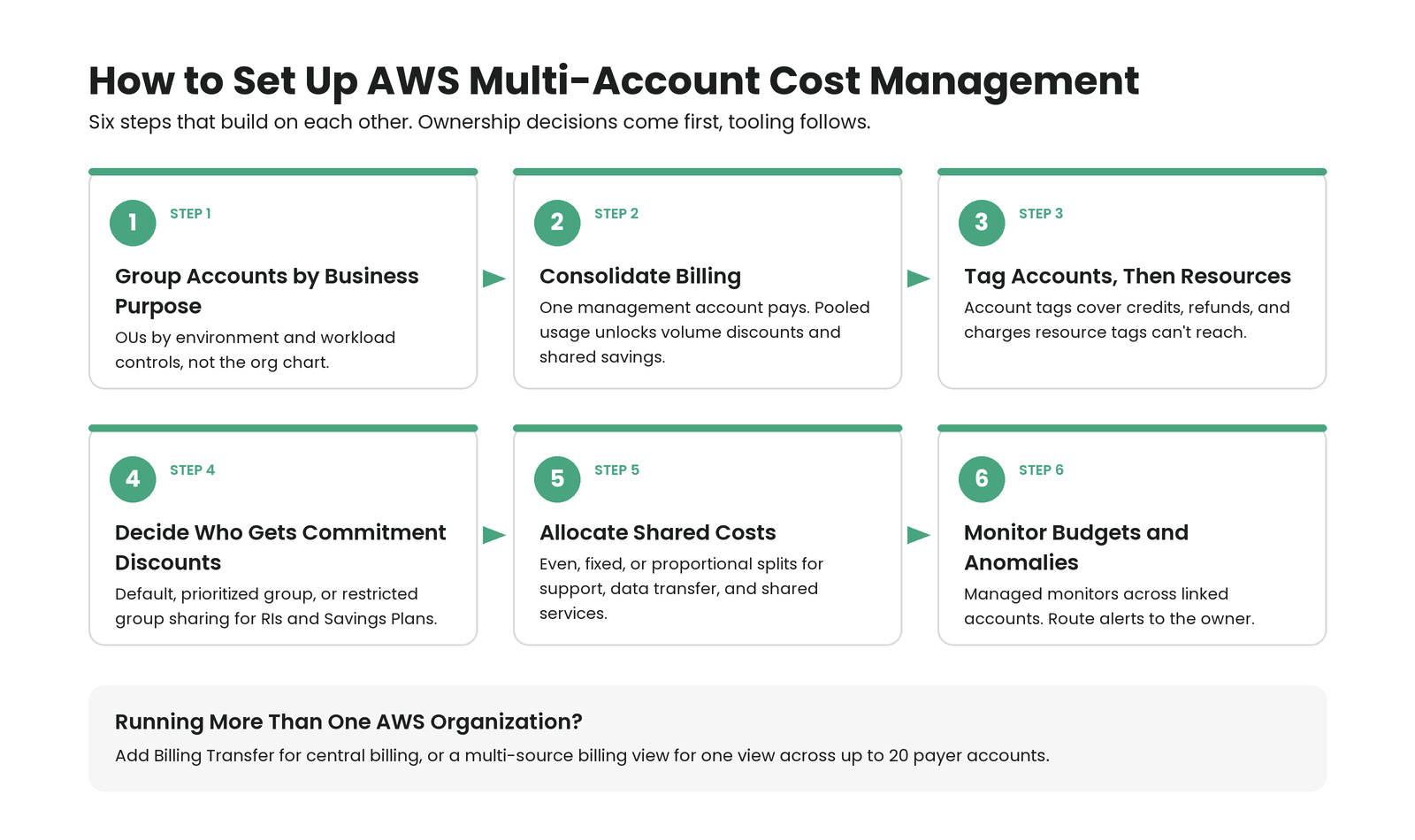
The six steps below build on each other. Ownership decisions come first, and tooling follows.
Each step also adds structure you'll have to maintain. Add only what answers a real business question.
Step 1: Group Accounts by Business Purpose, Not the Org Chart
Every charge on your AWS bill is tied to the account that ran it. That makes accounts a simple first unit to report on.
Group accounts into OUs by environment and workload controls. Common OUs include production, non-production, shared services, and sandbox.
Avoid OUs that copy reporting lines. The org chart changes with every reorg, and moving accounts between OUs can change the policies they inherit.
Where you can, give each workload account one owner. When a reorg happens, you update a mapping of accounts to teams and leave the account structure alone.
Step 2: Consolidate Billing Under One Management Account
Consolidated billing puts every member account on the management account's bill. AWS then treats the combined usage as one customer for pricing.
AWS sums up the benefit on its AWS Organizations consolidated billing page: "Consolidate billing across all member accounts to unlock volume discounts and shared savings benefits." Volume discounts work like tiered pricing, where some services get cheaper per unit as usage grows.
Shared savings come from commitment discounts. Reserved Instances and Savings Plans give you a lower rate in exchange for committing to steady usage over a set term. With consolidated billing, a commitment bought in one account can cover matching usage in another.
There's a side effect. Savings land where AWS applies them, and that isn't always the account of the team that paid. Step 4 deals with that.
Step 3: Tag Accounts First, Then Resources
A cost allocation tag is a key and value label, like team=payments, that you activate in AWS Billing before it shows up in cost reports.
Account-level tags label the whole account with an owner, cost center, environment, or business unit. All metered usage in that account picks up the label.
Since Dec 19, 2025, AWS has supported account tags as cost allocation tags, noting that "Account tags enable cost allocation for untaggable resources including refunds, credits, and certain service charges that cannot be tagged at the resource level." To turn it on, apply tags in the AWS Organizations console, then activate them on the Cost Allocation Tags page in Billing and Cost Management.
Resource tags add detail inside accounts that several teams share. Use them for application, service, or feature when one account holds work for many owners.
The table shows what each level of tagging handles.
| Account-level tags | Resource-level tags | |
|---|---|---|
| Where you apply them | AWS Organizations console | On each resource, often in infrastructure code |
| What they cover | All metered usage in the account | Only the tagged resource |
| Typical keys | owner, cost-center, environment, business-unit | application, service, feature, team |
| Credits, refunds, and some service charges | Covered | Not covered |
| Works well for | Single-owner workload accounts | Shared or multi-team accounts |
If an account tag and a resource tag disagree, decide which one wins. Write that rule down before the first report goes out.
Step 4: Decide Who Gets the Commitment Discounts
Unless you change the sharing preferences, Reserved Instance and Savings Plans discounts can apply across every account in the organization. That keeps unused commitments working, but it can hide the return for the team that bought them.
Since Nov 19, 2025, Reserved Instances and Savings Plans group sharing offers two modes: "the Prioritized Group Sharing applies commitments to defined groups first, then shares unused capacity organization-wide, while the Restricted Group Sharing keeps commitments exclusively within defined groups for complete isolation when strict boundaries are required." You define the groups with AWS Cost Categories, which group accounts and costs with rules.
The two modes, in plain terms:
- Prioritized Group Sharing: Your group uses its commitments first, and leftover capacity flows to the rest of the organization.
- Restricted Group Sharing: Commitments stay inside the group, even when part of them goes unused there.
If separate P&Ls, grant funding, or acquired business units need clean boundaries, use groups. Otherwise, keep default sharing, which spreads discounts across the whole organization.
Restricted sharing buys clean accountability by keeping commitments inside the group for complete isolation. Commitment that sits unused inside a group can't help accounts outside it.
Step 5: Allocate Shared Costs That No Single Account Owns
Some costs serve everyone and belong to no one. Enterprise support, data transfer, and shared services accounts all fall here.
A shared services account runs common infrastructure that many teams use, like networking, logging, security, or platform tooling. Its cost needs a rule that splits it across the teams that consume it.
Three split methods cover most cases:
- Even split: Divide the cost equally across teams. It's simple, but it overcharges light users.
- Fixed percentage: Give each team an agreed share. It's predictable, but it drifts as usage changes.
- Proportional split: Divide by a usage driver, like GB transferred. It's fairer, but it needs reliable usage data.
Pick a driver per cost. Networking splits well by GB transferred, and support often follows each team's share of total spend.
You can compare the tradeoffs in these methods for splitting shared costs. Whatever you pick, write the rule down, name an owner, and review it on a set schedule. Skip that, and the split gets relitigated every quarter.
Step 6: Monitor Budgets and Anomalies Across Every Account
Budgets catch slow drift. Anomaly detection catches sudden spikes, and you need both because the two look nothing alike.
AWS Budgets lets you set a spend target and alert when actual or forecast spend crosses it. AWS Cost Anomaly Detection uses machine learning to flag spend that breaks from your normal pattern.
Since Nov 19, 2025, AWS has offered managed monitors for linked accounts, announcing that "AWS Cost Anomaly Detection now enables you to monitor all linked accounts, cost allocation tags, or cost categories with a single managed monitor." AWS adds that new teams get monitored automatically as your organization grows, without configuration changes.
Account tags help here too. AWS's Dec 19, 2025 account-tag announcement from Step 3 notes you can set AWS Budgets and AWS Cost Anomaly Detection alerts on groups of accounts without configuring lists of account IDs.
Route each alert to the account or tag owner. An alert that lands in a shared inbox gets handled by no one.
What If You Run More Than One AWS Organization?
Acquisitions and subsidiaries often leave you with several Organizations. Each one has its own management account and its own bill.
One organization is simpler to govern, and a merge is worth considering. In practice, a merge isn't always realistic when security teams, contracts, or compliance boundaries need to stay separate.
Since Nov 19, 2025, AWS Billing Transfer has covered this case: "With Billing Transfer, customers operating in multi-organization environments can designate a single management account to centrally manage and pay for bills for multiple organizations, including invoice collection, payment processing, and detailed cost analysis." Each organization's management account keeps its security autonomy. Starting June 1, 2026, AWS charges a monthly fee of $50 per AWS Organization with a Customer managed pricing plan.
A payer account is the account that pays an organization's bill, usually its management account. AWS's Dec 10, 2025 re:Invent recap covers the multi-source billing view: "Now, with the multi-source billing view, you can aggregate shared billing views from up to 20 different payer accounts in a unified view within the AWS Billing and Cost Management Console."
Either way, plan your Reserved Instance and Savings Plans purchases organization by organization, and check how sharing behaves before you buy. Your tag keys also need to match across every organization for reports to line up.
Where Native AWS Tools Stop
Native AWS tools are built for AWS spend. Costs billed outside AWS, like SaaS invoices from other vendors, AI provider bills, and workloads on other clouds, need another home. Finout's guide to the limits of native AWS cost tools covers where each console falls short.
There's a deeper gap. Your account structure is an infrastructure map, while the business asks about products, features, and customers.
The FinOps Foundation's FinOps Scopes definition puts it this way: "A FinOps Scope is a defined segment of spending across technology categories, aligned to business constructs–such as product, cost center, or environment–that guide the application of FinOps to maximize technology value." The same page says Scopes reflect decision context, not infrastructure boundaries.
Finout's view: treat accounts as an input to allocation, not the allocation model. An account tells you where spend ran, and a Scope ties that spend to the decision it supports.
Cost Explorer is AWS's built-in tool for charting and filtering spend. The Cost and Usage Report (CUR) is AWS's line-item billing dataset, and querying it in Amazon Athena can fill gaps Cost Explorer leaves. You then own the pipelines, the queries, and their upkeep.
Common Pitfalls in AWS Multi-Account Cost Management
Most of these mistakes start as reasonable decisions that age badly.
Building OUs around the org chart. It feels natural because leadership asks questions by reporting line. The next reorg then forces account moves, and the fix is to group by workload and keep the team mapping separate.
Tagging only resources. Resource tags feel complete until finance asks where credits, refunds, and support charges went. Add account tags to catch what resource tags can't reach.
Turning off discount sharing to protect one team. It looks like a fair way to show that team's savings. Model the bill impact first, because commitments that used to cover other accounts may now sit partly unused.
Treating the shared services account as the platform team's cost. The platform team runs the account, which makes it look like the spend owner. That buries what each consuming team costs, and a written split rule fixes it.
What Does This Mean in Practice?
The right first move for AWS multi-account cost management depends on how your accounts and teams are set up today.
- Fewer than a few dozen accounts in one organization: Start with consolidated billing, account tags, and one managed anomaly monitor.
- Many teams sharing accounts: Prioritize resource tags and shared-cost rules, because account tags alone won't split a shared account.
- Several Organizations after an acquisition: Decide between merging and Billing Transfer before building reports, because reports built on the wrong structure get rebuilt.
- SaaS, AI providers, or other clouds on the bill: Plan for allocation outside AWS consoles, because those bills arrive outside AWS billing.
Rightsizing, storage, and commitment planning are covered in these broader AWS cost management practices.
If you're weighing native tools against a dedicated platform, start with AWS cost management services compared. Then ask the question that decides whether any of this sticks: who signs off on the allocation rules?
How Finout Maps Every AWS Account to a Business Owner
Finout is an enterprise-grade FinOps platform for cloud and AI spend. Finout treats your AWS accounts as one input and maps that spend to the teams, products, and cost centers your business uses.
The MegaBill brings AWS, Kubernetes, SaaS, and AI costs into "a single, unified view, at any level of granularity." That gives AWS multi-account cost management a home next to everything else on the bill.
Virtual Tags scan "names, labels, namespaces, accounts, projects, and metadata" and turn them into allocation rules. You can then group spend "by team, service, environment, project, BU, customer segment."
Virtual Tag Sync updates allocation automatically "when ownership changes, services move, or teams split." That's the reorg problem from Step 1, handled as a mapping change.
Shared Cost reallocates spend with telemetric-based or custom rules. Use cases include data transfer, shared databases, and Amazon support.
Anthony Logan, Senior Director of FinOps & Sourcing, describes the result: "Finout's Virtual Tags provide precise and detailed cost reports, mapping shared accounts to the right teams across more than 100 workloads." The quote appears on Finout's page about showback across shared accounts.
Anomaly Detection lets you create custom anomalies with tailored rules, thresholds, and patterns. You can track anomalies by individuals, teams, applications, or environments, with alerts in Slack or email.
Financial Plans let you track budgets by any unit, such as feature, team, or segment.
Alchemy reached "98% of cloud cost allocation through Virtual Tags." The team also reports it "Identified and addressed cost inefficiencies 90% faster using Finout's Anomaly Detection feature." You can read the details in Alchemy's allocation results.

.svg)